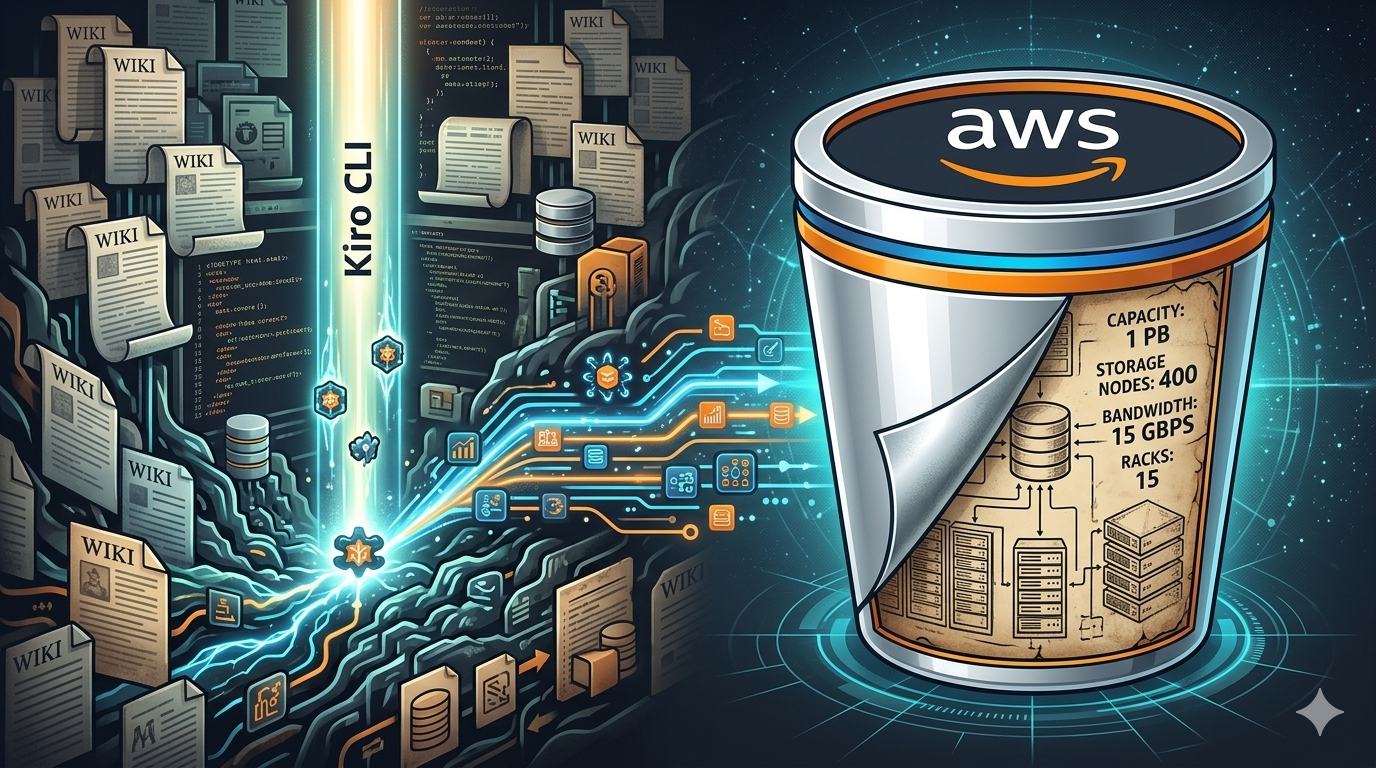
Today, twenty years ago, AWS quietly launched Amazon S3. What started as a simple object store with two primitives, PUT and GET, became the foundation upon which large enterprises built their data lakes, and with the introduction of S3 Vectors, is now powering a growing number of AI workloads.
I had the honour of writing the S3 anniversary blog post for AWS. For that post, I wanted to go beyond the usual narrative and share concrete technical details about the infrastructure behind S3 when it first launched. I interviewed Senior Principal Engineers who were around twenty years ago and collected stories about the early days. But stories alone weren’t enough. I needed data. What was the initial storage capacity? How many objects could the system hold? How much bandwidth was available? To publish numbers like these in an official AWS blog post, anecdotes don’t cut it. I needed evidence.
That’s when an engineer pointed me to an old archived wiki system, still up and running somewhere inside the network. The original pages had been converted to static HTML, and the entry point was just a long list of links. Hundreds of pages related to the early design of S3, with no search, no index, no structure. Just raw HTML files from a different era.
I wasn’t going to read through hundreds of pages manually. This is exactly the kind of problem where Kiro CLI shines.
Downloading the archive
First, I asked Kiro to write a script to download all the files to my laptop. A quick crawl of the entry page, follow every link, save the HTML locally. Within minutes I had a local copy of the entire archive sitting in a folder on my machine.
Building a knowledge base
Next, I used Kiro CLI’s experimental knowledge management feature to import all these files into a local RAG. The /knowledge command lets you index files and directories into a persistent knowledge base that Kiro can search during chat sessions. You point it at a directory, it chunks the content, builds an index, and from that point on you can query it using natural language.
The setup was straightforward. I enabled the feature, pointed it at the folder of archived HTML files, and let it index everything.
kiro-cli settings chat.enableKnowledge true
/knowledge add --name "s3-archive" --path ./s3-wiki-archive --index-type Best
I chose the Best index type, which uses semantic search rather than simple keyword matching. For documentation and research like this, semantic search is the right call. I wasn’t looking for exact strings. I was looking for concepts: early storage capacity, number of nodes, bandwidth constraints, original pricing.
Finding the numbers
With the knowledge base ready, I asked Kiro to find relevant facts about the early design of S3. Maximum storage size, total available capacity, number of storage nodes, bandwidth. Kiro searched through the indexed archive and surfaced the relevant documents within seconds. Each answer came with a reference to the source file, so I could go back and cross-check the original document myself.
This research is what allowed me to write this paragraph in the anniversary blog post:
When S3 first launched, it offered approximately one petabyte of total storage capacity across about 400 storage nodes in 15 racks spanning three data centers, with 15 Gbps of total bandwidth. We designed the system to store tens of billions of objects, with a maximum object size of 5 GB. The initial price was 15 cents per gigabyte.
Every number in that paragraph came from the archived wiki pages, surfaced by Kiro’s knowledge base and verified against the original sources. Without this tool, finding those details would have taken hours of manual reading. With it, the whole process took maybe fifteen minutes.
Try it yourself
The knowledge base feature in Kiro CLI is still experimental, but this experience convinced me it’s genuinely useful for research-heavy tasks. Any time you have a large corpus of documents and need to extract specific information, building a local knowledge base and querying it with natural language is faster and more reliable than grep or manual browsing.
It works well for internal documentation, legacy codebases, archived wikis, or any collection of files where the information you need is buried somewhere but you don’t know exactly where. The semantic search understands what you’re asking for, not just the words you use.
If you want to try it yourself, the /knowledge command is available in Kiro CLI today. You just need to enable the experimental feature first.
> /knowledge

(Beta) Manage knowledge base for persistent context storage.
Requires "kiro-cli settings chat.enableKnowledge true"

Usage: /knowledge <COMMAND>

Commands:
  show    Display the knowledge base contents and background operations
  add     Add a file or directory to knowledge base
  remove  Remove specified knowledge base entry by path
  update  Update a file or directory in knowledge base
  clear   Remove all knowledge base entries
  cancel  Cancel a background operation
  fix     Fix knowledge base directory names after agent file path changes
Give it a try with your own documentation or archives. You might be surprised how quickly it finds what you’re looking for.
Happy coding.